Blog · 15 September 2026
Use Rootmode with Claude, Codex, OpenCode or any other coding harness
You can point Claude Code, Codex, OpenCode, Cursor and most other editors at rootmode, so they use the network instead of a paid API.
You don’t need a plugin. Open the app, click Use it elsewhere in the sidebar, and turn it on. Other programs on this computer can then use the same models you already chat with.
Nothing is exposed to the internet. Only apps on this machine can connect, and only if they have the key on that screen. Keep rootmode open while you work: the editor talks to the app, and the app talks to the network.
If the tool is already installed
Claude Code, Codex, OpenCode, Zed, Goose, Crush and pi don’t need anything pasted. Flip the switch next to the name and rootmode writes the address, the key and the model into that tool’s own config, then opens it. Flip the switch off and those lines are removed again.
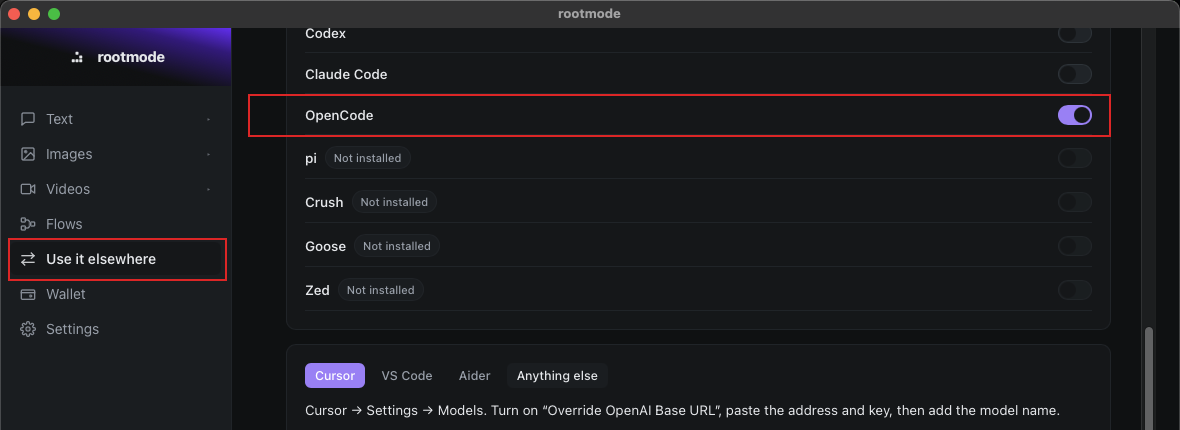 OpenCode connected. The others work the same way if they’re installed.
Under the hood that’s a small edit to a file you might already know:
- Claude Code gets
ANTHROPIC_BASE_URL, ANTHROPIC_AUTH_TOKEN and ANTHROPIC_MODEL in ~/.claude/settings.json.
- Codex gets a
rootmode provider in ~/.codex/config.toml.
- OpenCode gets a
rootmode provider in ~/.config/opencode/opencode.jsonc.
- Zed, Goose, Crush and pi each get the same treatment in their own config. Zed will ask you to paste the key once.
At the top of the screen you can pick which model other apps should use, or leave it on cheapest. If an editor asks for a model nobody on the network is serving — Claude Code does this for some of its background work — that’s the model it gets.
If you have to paste
Cursor, Continue, Cline, Roo and Aider don’t have a switch yet. The same screen has a tab for each of them, with the address, key and model already filled in. Copy those three values into the tool.
Cursor
Go to Settings → Models and turn on “Override OpenAI Base URL”, then paste:
Base URL   http://127.0.0.1:11435/v1
API key    <copy from the screen>
Model      <the model you picked>
Cursor checks the key by calling the endpoint, so rootmode has to be open when you save.
Continue, Cline and Roo
They take the same three values. For Continue, put them in ~/.continue/config.json:
{
  "models": [{
    "title": "rootmode",
    "provider": "openai",
    "model": "<the model you picked>",
    "apiBase": "http://127.0.0.1:11435/v1",
    "apiKey": "<copy from the screen>"
  }]
}
Aider
export OPENAI_API_BASE=http://127.0.0.1:11435/v1
export OPENAI_API_KEY=<copy from the screen>
aider --model openai/<the model you picked>
Anything else
If a tool can be pointed at an OpenAI-compatible server, these two fields are enough:
Base URL   http://127.0.0.1:11435/v1
API key    <copy from the screen>
If it speaks Anthropic’s API instead, drop the /v1 from the address and send the key as ANTHROPIC_AUTH_TOKEN. You can check the endpoint from a terminal:
curl http://127.0.0.1:11435/v1/models \
  -H "Authorization: Bearer $KEY"
How to tell it’s working
The listening line on that screen counts requests. Send a prompt from the editor and the number should go up. If it doesn’t, the editor is still talking to its usual API.
Claude Code’s banner will still say Claude. That label is its own and doesn’t follow the address you set. Watch the request counter instead.
If you want to cut off anything still using the old key, hit Replace. The default port is 11435, one above Ollama, so the two can sit side by side. You can change it under Details if something else has taken it.
This path is text only. Pictures and video stay in their own tabs, and answers arrive all at once rather than being typed out.
15 September 2026